February Product Updates: an extensive list of new features
This month, we’re introducing dedicated Page statistics, a brand-new Contact form component in Page Builder, smarter tag management, extended API capabilities, and major performance improvements in Schedules. We’ve also improved publishing clarity, strengthened automatic design adaptability, and resolved several important issues affecting media display.
New features
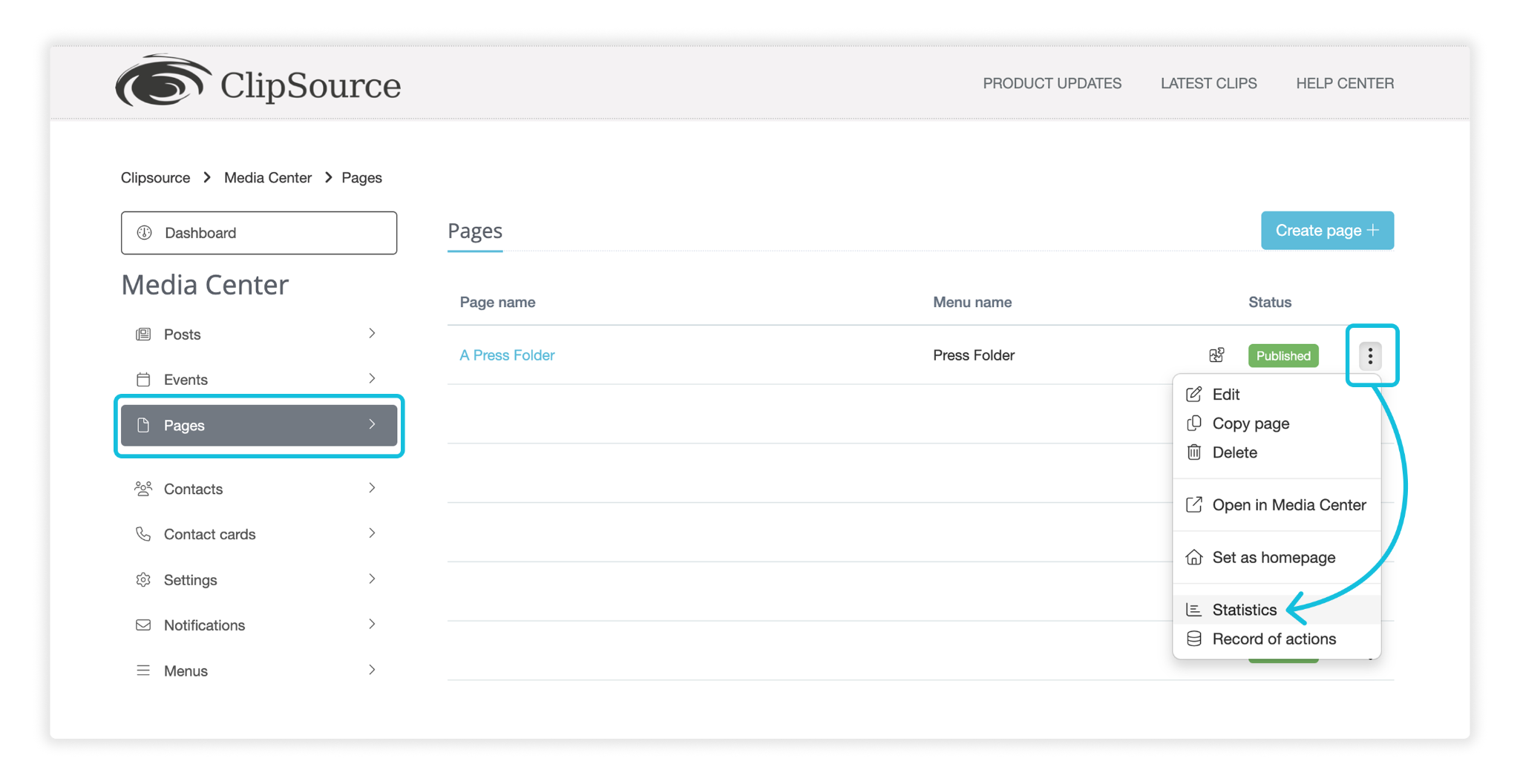
New: Page statistics for Page Builder
- Total page views
- Known users (when logged in)
- Unknown users (for public pages)
- Downloads made directly from media added via Page Builder components
This makes it easier to understand engagement with show pages, campaign pages, or other custom-built sections in Media Center.
Note: Download tracking currently applies to downloads triggered within Page Builder components (not downloads made directly from Mediabank collection views)
These statistics are available for all pages you may build in the Page Builder, except for the page you have set as your homepage. Homepage traffic is currently not included in Page Statistics. For homepage insights, customers using Google Analytics can access that data in their own GA setup.
Where to find it: Media Center → Pages → Open three dot menu on a Page → Statistics
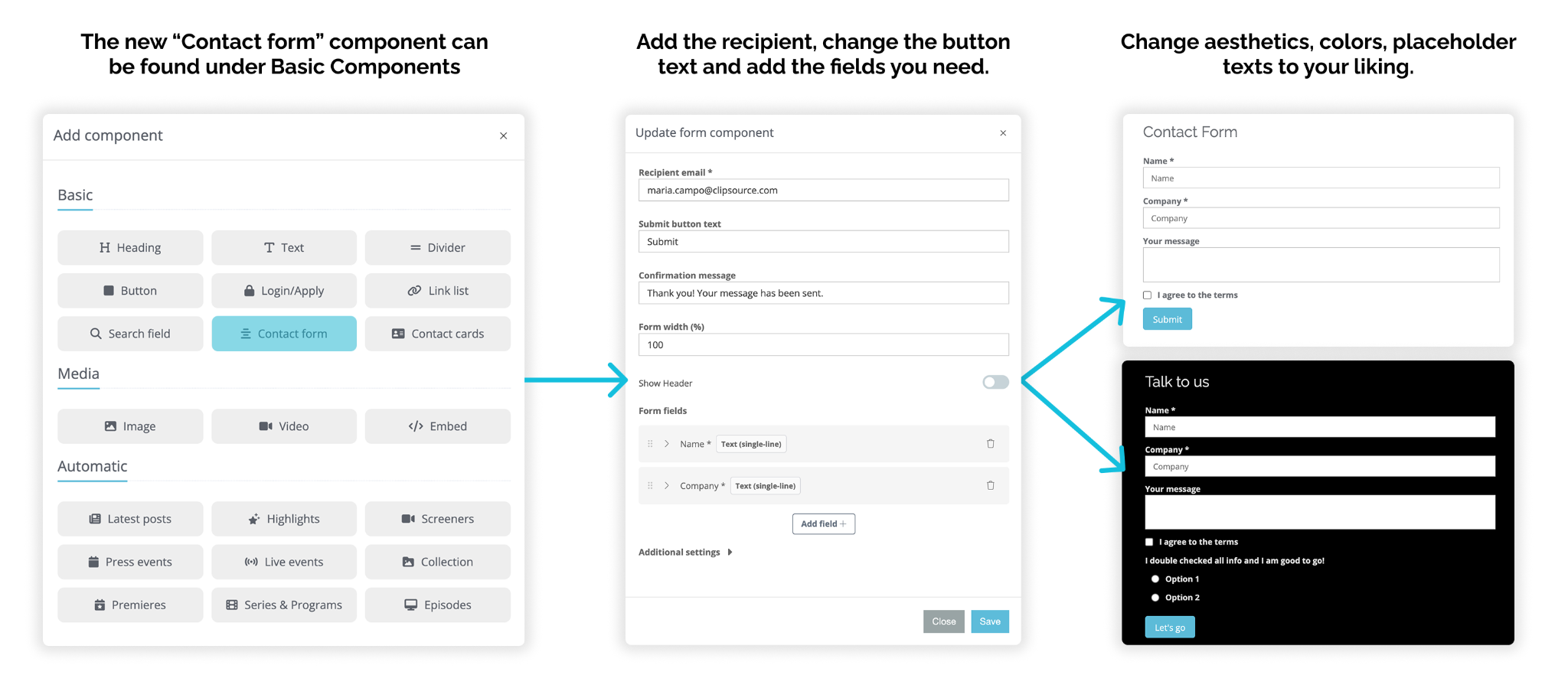
New: Contact form component in Page Builder
We’ve introduced a brand-new Contact form component in Page Builder — replacing the legacy form solution previously used in Websites and older Pages.
You can now:
- Add contact forms directly to any Page Builder page
- Define a recipient email (submissions are sent directly via email)
- Customize confirmation messages
- Use predefined fields (Name, Company, Email, Message)
- Add custom fields as needed
- Mark fields as mandatory
- Add forms in both public and access-controlled setups
Clipsource does not store or process submissions — they are delivered directly to the defined recipient.
Where to find it: Media Center → Pages → Edit page or create a new one → Add component (Basic) → Contact Form
New: Contact cards on Page Builder
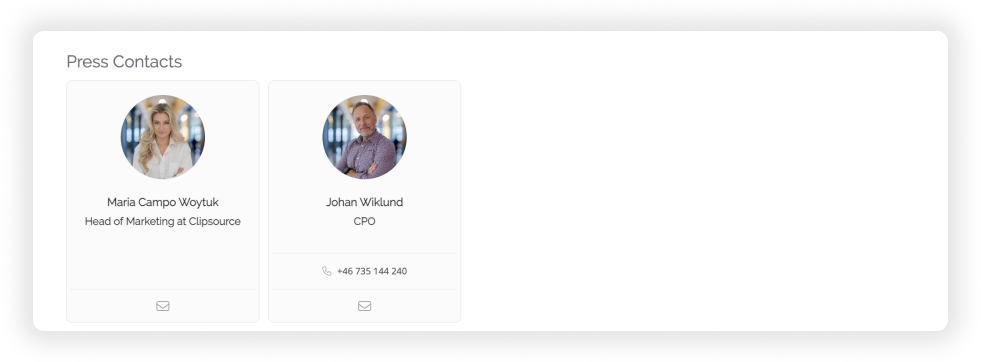
As per popular request, we have added a new component where you can display contact cards on any landing page you create.
- Select the contacts you want (as many as needed)
- Choose alignment (center, left or right)
- Add a header if needed
- Change the spacing and background color (also now fully UI adaptable, like other automatic components)
As mentioned in our last update, your contact cards will also be displaced nicer, by having a new and upgraded view, so all your contact card images look the same in a cohesive way.
Where to find it: Media Center → Pages → Edit page or create a new one → Add component (Basic) → Contact Cards
Improvements & Updates to existing features
Improvement: Merge tags when renaming
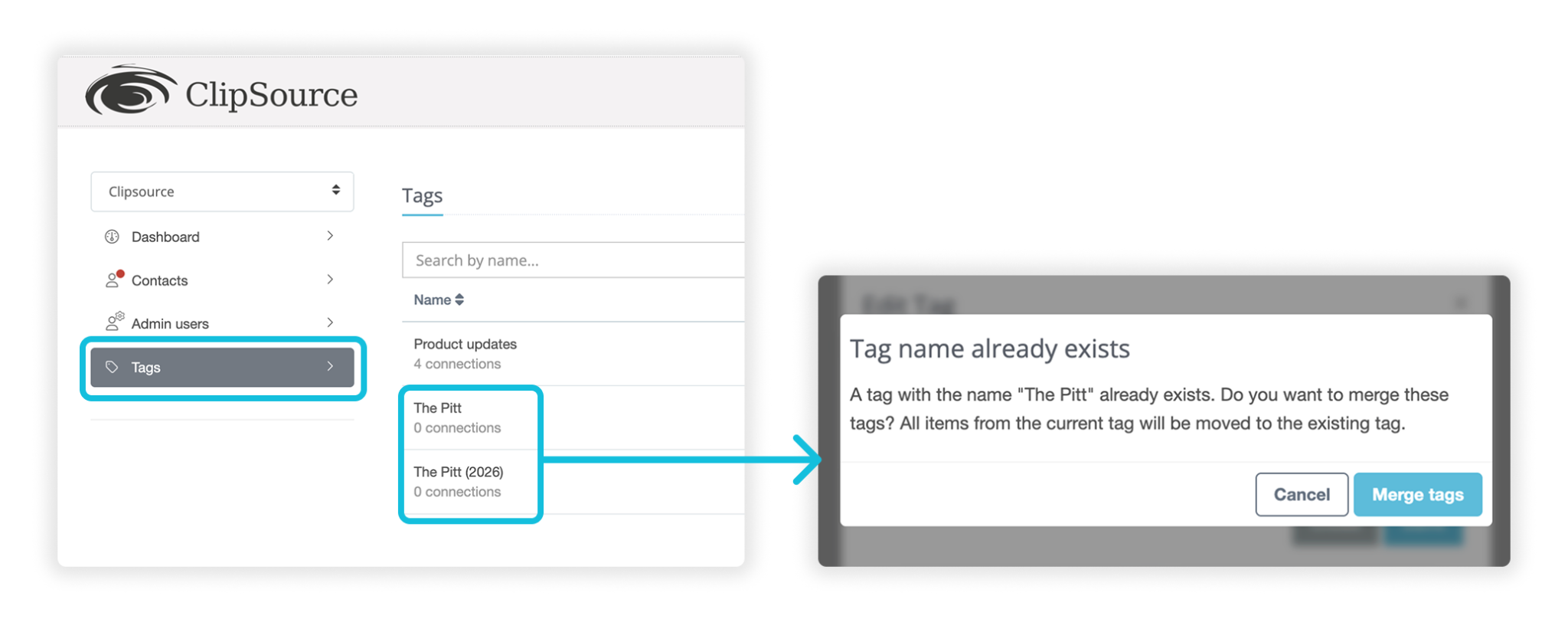
Managing large tag libraries just got easier. When renaming a tag, if the new name already exists, you’re now prompted to merge the tags.
If confirmed:
- All connections are automatically moved
- Duplicate tags are eliminated
- Content structure becomes cleaner
This helps prevent long-term tag fragmentation and keeps filtering structured and professional.
Where to find it: Admin → Tags → Edit a tag → Rename to an existing tag name
Improvement: Publish tab clarity for Posts & Events
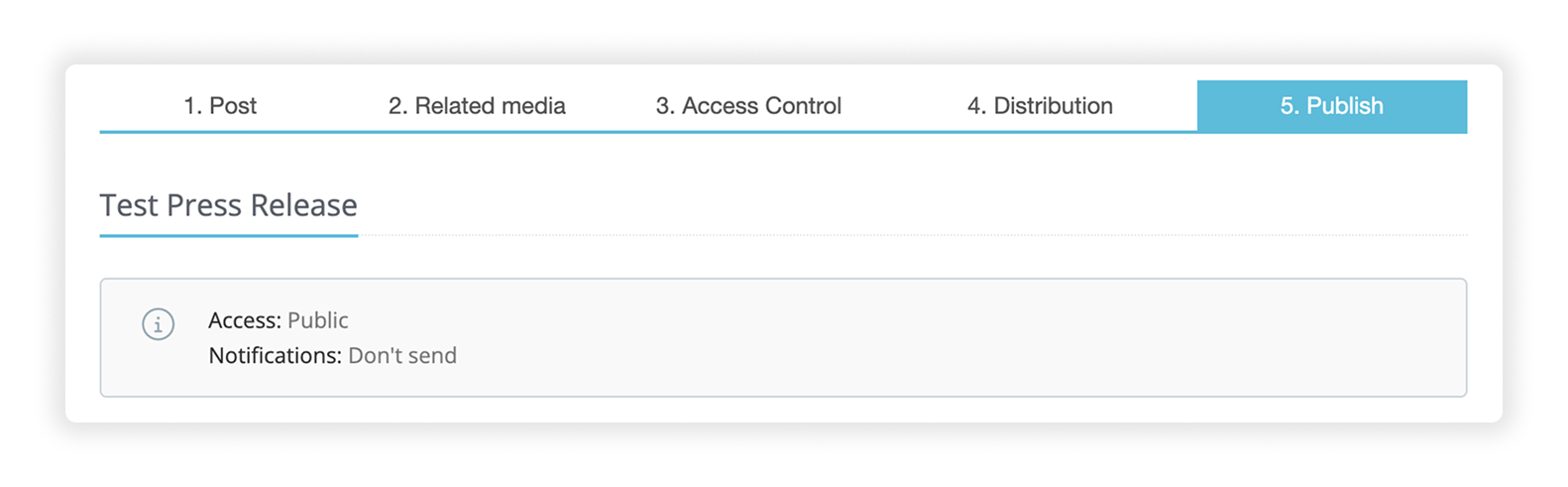
We’ve added an information panel in the Publish tab for Posts and Events. Before publishing, you now see a clear summary of:
- Access control settings
- Notification choices
- If the post is scheduled for publishing
This gives editors a final confirmation of what will happen once content is published — reducing mistakes and increasing confidence. The panel is only shown for unpublished content.
Where to find it: Media Center → Open Post or Event → 5. Publish tab (visible before publishing)
Upgrade: Extended news API
The News API has been expanded with additional structured data.
Newly supported fields:
- Publisher and author information (relevant for Book customers)
- Tags
Including tags in the API makes it easier to build structured external news pages, menus, or categorized sections on your own website using Clipsource data.
Where to find it: Available via News API endpoints (for customers using API integrations)
Improvement: Searchable channel selector (Schedules)
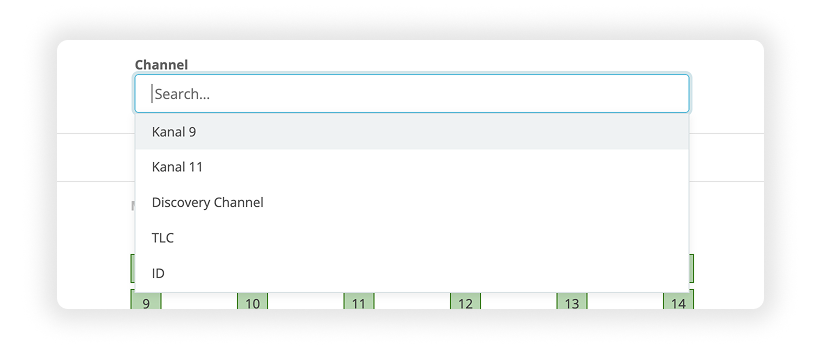
The channel dropdown in Admin → Schedules now supports search.
Start typing to instantly filter channels — especially helpful for customers managing many channels. This improves navigation speed and reduces friction in schedule management.
Where to find it: Admin → Schedules → Channel selector dropdown
Improvement: Schedule (EPG) Admin performance
We’ve significantly improved loading performance in the Admin Schedule view.
- By optimizing validation logic and rebuilding how the list is generated:
- Page load times are noticeably faster
- Large schedule datasets are handled more smoothly
- The overall experience is more responsive
For customers working with heavy EPG data, this is a major usability improvement.
Where to find it: Admin → Schedules
Improvement: Adaptive UI colours in Automatic components
Automatic components in Media Center now adapt to background colours automatically.
When you change a background color:
- Text switches between light and dark tones
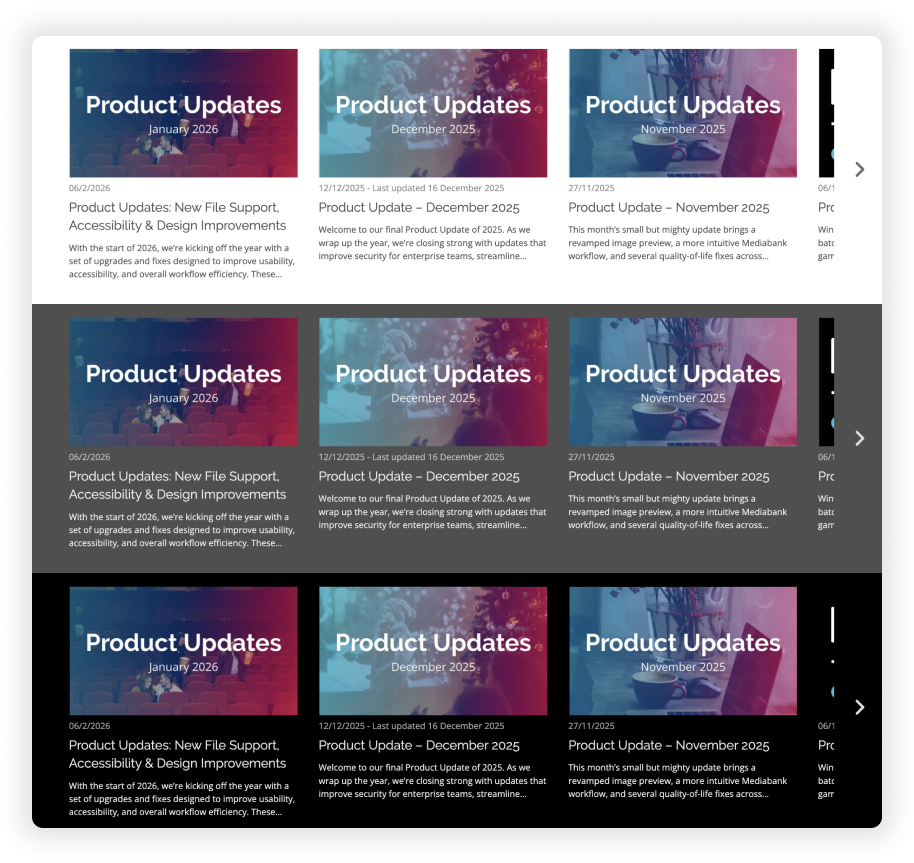
- Buttons adapt
- Icons adjust
- Labels maintain contrast
- Borders and frames adjust where applicable
This works across all automatic components (e.g. Latest Posts, related content components, etc.). The result:
- Improved readability
- Better accessibility support
- Greater design flexibility
- Consistent visual hierarchy across branded backgrounds
Where to find it: Media Center → Pages → Automatic components (background colour settings in any automatic component.
Other fixes
Fix: Photographer metadata display
Photographer information is now consistently shown in the image preview modal. Previously, this metadata was missing in some views.
Where to find it: Media Center → Open image preview modal
Fix: External video as poster in Media Center
Resolved an issue where external videos (e.g. YouTube embeds) could not reliably be saved as poster thumbnails.
External media now:
- Saves correctly as poster
- Persists after editing
- Displays consistently in published view
Where to find it: Media Center → Post → Related Media → Set external video as poster
And that's all folks! As always, if you have any questions we've got your back over at support@clipsource.com
Contacts

Johan Wiklund
CPOLatest news

September product updates: Passwordless login, easier content reuse & drag-and-drop uploads
September may be drawing to a close, but there’s still time for another round of product updates. With IBC behind us, we’ve gathered a mix of new features and smaller improvements designed to make everyday work in Clipsource a little smoother. Let’s take a look!
Clipsource tackles the overlooked security gap in TV promotional workflows at IBC 2026
Partner Upload gives broadcasters and streaming services a secure, controlled way to receive promotional assets from production companies and other external partners.

August Product Updates: Centralized Contact cards, public events & smarter search
We're back!✨ It's been a longer stretch than usual since the last Product Update with summer holidays and our code freeze got in the way, but of course we love to keep busy behind the scenes, so there's quite a lot new really cool updates we think will make your days easier!
June Product Updates: NEW features, FRESH updates & more.
This month is all about giving you more control over how your content looks — and a much smoother way to get media into the platform. We're introducing a brand-new Columns component, fully customizable footers for Media Center and Website, fresh layout options for your lists and schedules, and a radically simpler upload experience in Mediabank.
May Product updates: Smarter admin workflows, safer sharing & faster search
This update brings improvements across Screening Room, Mediabank, Program Catalog and Media Center Pages, focused on saving admin time, improving content accuracy, strengthening compliance, and making shared content easier to manage across organizations.
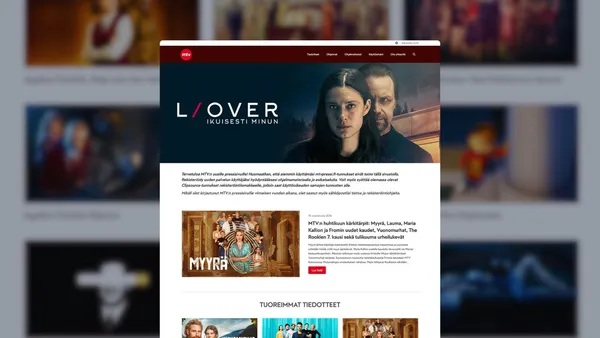
Clipsource launches Media Center with MTV in Finland
FOR IMMEDIATE RELEASE Stockholm, 16 April 2026 Stockholm-based Clipsource, the only PR and communications platform truly made for TV and streaming, today announced that it has launched a new Media Center with MTV, the leading commercial TV and streaming platform in Finland. MTV is a cornerstone of the Finnish media landscape, reaching millions of viewers across news, entertainment, sports, and drama. The channel is known for strong local journalism, premium Nordic content, and major international formats, and plays a central role in shaping daily news consumption and popular culture in Finland. The new Media Center from Clipsource will give journalists, partners, and media professionals fast and intuitive access to news and media assets related to MTV’s programming and initiatives. By centralising rich media and contextual information, the platform is designed to: Strengthen media coverage by making MTV’s content easier to find, access, and use for journalists across Finland and internationally Streamline media workflows with automated press material ingestion. Increase editorial efficiency by reducing time spent on asset delivery and coordination MTV and TV4 are both part of Schibsted’s TV Media business area, operating with shared Nordic teams and functions. While TV4 has been a long-standing Clipsource customer, this collaboration is now being extended to include MTV. “With Clipsource, we are enabling a harmonized Nordic way of working across TV4 and MTV. A shared platform allows us to streamline our processes, reduce manual work, and ensure consistent, high-quality communication around our content.”, said Jannike Croona Broman, Head of TV Operations, TV4 & MTV. “For us, it’s important that working with MTV’s programme materials is as smooth as possible for journalists. With Clipsource, most of the content flows are automated, which frees up our time to focus on what really matters – exploring new possibilities to engage the media”, said Maiju Saloranta, PR & Communications Manager, MTV “MTV is a hugely important brand in the Nordic media ecosystem, with a strong legacy and a clear focus on high-quality content,” said Dan Willstrand, CEO of Clipsource.“We’re proud to extend our collaboration within the TV4 family and to support MTV with a modern Media Center that helps journalists and partners access rich, accurate, and timely information effortlessly.” Following a strong start to the year, Clipsource is seeing rapidly growing demand for communications services tailored to streamers and broadcasters. The shift is driven by a clear industry need: to unify workflows and simplify content management and distribution. By bringing press materials, screeners, video, and schedules into one platform, Clipsource enables media companies to serve journalists and partners faster and more effectively. At the same time, tighter budgets and leaner teams are accelerating the need for smarter tools. By integrating with existing systems, Clipsource allows communications teams to do more with less, streamlining operations while increasing reach and impact. MTV’s new Media Center in Finland is now available at https://mtvpressi.fi See images attached: Screenshot of MTV Media Center Dan Willstrand, CEO of Clipsource Jannike Croona Broman, Head of TV Operations, TV4 & MTV Maiju Saloranta, PR & Communications Manager, MTV For more information contact: Dan Willstrand, CEO, Clipsource dan.willstrand@clipsource.com Jannike Croona Broman, Head of TV Operations, TV4 & MTV jannike.croonabroman@tv4.se Maiju Saloranta, PR & Communications Manager, MTV maiju.saloranta@mtv.fi About Clipsource Clipsource is the only PR and communications platform truly made for TV and streaming. It dramatically simplifies communication and data distribution, always with the goal of increasing awareness and consumption of customers’ content. The services include digital Media Centers, Scheduled Distribution, Program Screening, Content Sharing with partners, and much more. Founded in 2010, the company has customers including Warner Bros. Discovery, HBO Max, SkyShowtime, Sony, TV4, Viaplay, Storytel, Piers Morgan, SF, and Nordisk Film. About MTV MTV Oy is Finland’s leading commercial TV company and a home for premium video content, stories and talent. MTV’s media family includes MTV Katsomo streaming service, free-to-air channels MTV3, MTV Sub and MTV Ava, MTV News delivering current affairs across multiple platforms, MTV Sports, and MTV’s pay-TV channels. MTV is part of Schibsted, one of the leading media companies in the Nordics.
March Product Updates: Website – now with Pagebuilder
This month, we’re making it easier to publish, manage, and scale your content across teams and sites. With the upgrade of Website, a new way to build fully public-facing sites, and shared content components across organisations, you can now simplify your setup while reducing duplication. Alongside this, we’ve made a range of improvements to Mediabank, tagging, accessibility, and overall usability.
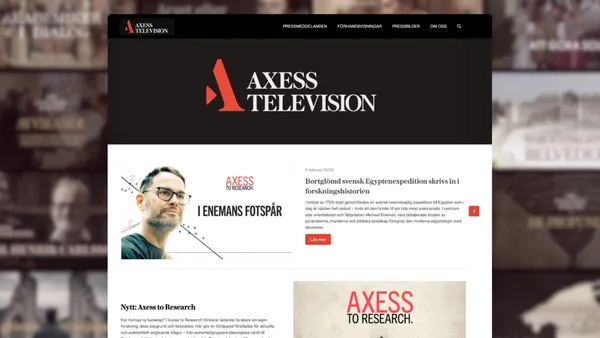
Axess Television Chooses Pressroom from Clipsource
Clipsource, a provider of PR solutions for media companies, is launching a digital pressroom for Axess Television, a Swedish TV channel owned by the Axel and Margaret Ax:son Johnson Foundation.

Product Updates: New File Support, Accessibility & Design Improvements
With the start of 2026, we’re kicking off the year with a set of upgrades and fixes designed to improve usability, accessibility, and overall workflow efficiency. These updates include document support in Mediabank, improved focus handling for accessibility, refreshed contact cards, expanded subtitle language support in Screening Room, and multiple fixes across tags and video playback.
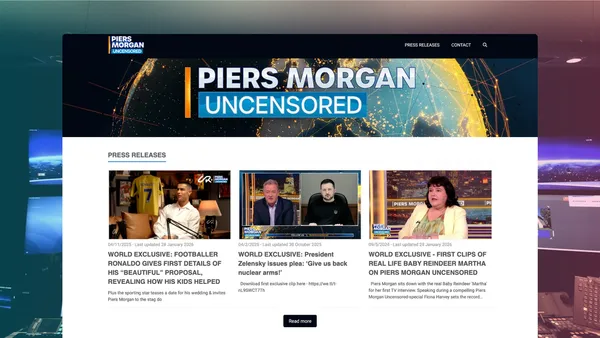
Clipsource to Launch Media Centre for Piers Morgan Uncensored
Stockholm-based Clipsource, the leading provider of digital Media Centres for the entertainment and media industry, today announced that it will launch a bespoke Media Centre for Piers Morgan Uncensored, the flagship YouTube talk show hosted by British journalist Piers Morgan. Piers Morgan Uncensored has become one of the most compelling digital platforms for deep-dive interviews and hard-hitting conversations since its 2022 launch on Youtube. It now reaches millions of viewers around the world, with over 4.3 million subscribers and more than 1.2 billion views to date. Piers Morgan’s career in journalism spans decades — from editing some of Britain’s biggest newspapers to hosting major television programmes. On Piers Morgan Uncensored, he has engaged in headline-making conversations with some of the world’s most high-profile figures, including U.S. President Donald Trump, global football icon Cristiano Ronaldo, and cultural megastars such as Kanye West. The new Media Centre from Clipsource will give journalists, partners, and media professionals fast, intuitive access to press releases, high-resolution images, video, and other assets related to Piers Morgan Uncensored. By centralising rich media and contextual information, the platform is designed to: Streamline media workflows with easy access to pre-release and promotional materials. Increase editorial efficiency by reducing time spent on asset delivery and distribution. Enhance discoverability of show content across global news and online outlets. “Piers Morgan has built a truly global platform that thrives on fearless journalism and cultural relevance.” said Dan Willstrand, CEO of Clipsource.“We’re excited to support Piers Morgan Uncensored with a Media Centre that helps journalists and content partners around the world find the stories and assets they need quickly, accurately, and beautifully presented.”Clipsource supplies digital Media Centres to the world’s leading entertainment and media organisations, including Warner Bros. Discovery, SkyShowtime, Sony Pictures, and Hallmark. In an era where rich media and data accelerate discovery and coverage, Clipsource enables communications teams to focus on value-creating activities rather than logistics.The new Media Centre for Piers Morgan Uncensored was launched on 2 February 2026 and will be accessible at mediacentre.pmu.media.See images attached Screenshot of Media Centre Dan Willstrand, CEO of Clipsource For more information, contact:Dan Willstrand, CEO, Clipsourcedan.willstrand@clipsource.com About Clipsource Clipsource is a platform that dramatically simplifies communication and data distribution for media companies—always to increase awareness and consumption of the customers’ content. The services include digital media centres, schedule distribution, program screening, content sharing with partners, and much more. The company was founded in 2010 and has customers such as Warner Bros. Discovery, HBO Max, SkyShowtime, Sony, TV4, Viaplay, Storytel, SF and Nordisk Film. About Piers Morgan Uncensored As a powerful digital-first brand, Piers Morgan Uncensored surpassed one billion views in just three years. The show has established itself as the home of exclusive, news-making interviews and passionate debate. A weekly highlights programme is broadcast on 5 in the UK, and a new spin-off series, History Uncensored with Bianca Nobilo - the first announced under the Uncensored umbrella - was announced at the end of last year.

Clipsource Unwrapped 2025
First of all, thank you. Truly. Thank you for being with us, for trusting us, and for choosing Clipsource as part of your everyday work. When we look back at 2025, one word comes to mind: intense. But in the best possible way. It was a year filled with movement, decisions, learning, and progress. Not always easy, but always purposeful. In a time of uncertainty across the industry, we chose to focus on what we can control: building a better product and being close to the people who use it. We shipped many improvements this year, shaped by your feedback and real needs, all with one goal in mind: to make your work smoother. What that focus looked like in practice Throughout the year, Clipsource became a daily workspace for more teams than ever. Millions of assets were uploaded, shared, and managed on the platform, supporting everything from press launches to long-term content libraries. Usage grew steadily across markets, with more users, more published pages, and more media being accessed every month. Product highlights from 2025 Behind the scenes, a lot happened. Here are some of the biggest improvements and launches from the year. A brand-new Page Builder We launched a fully customisable Page Builder for Media Center homepages. Customers can now freely design their layout, choose from a growing list of components, and pull content from across the Clipsource platform with no developer help required. Smarter storytelling with new components New components like automated lists, live event blocks, book catalogs, and collection banners made Media Center pages more dynamic and expressive. Tags connect and link content across modules; posts, programs, screeners, and images. Each tag creates a dedicated page, automatically showing all related content. Media management, upgraded A new cropper: Crop images for different layouts with custom backgrounds all while preserving the original file. AI image flags: Customers can now identify AI-generated images, automatically or manually. Security and access, reimagined SSO support: Single Sign-On (SSO) is now available in Admin, enabling secure authentication through providers like Azure AD, Okta, and Google Workspace. Accessibility, done right We’ve rolled out improvements aligned with WCAG 2.1, including consistent icon tooltips, keyboard navigation, alt text fields, and more. More to come in 2026. Smarter workflows, deeper integrations 2025 was all about helping our customers do more with less manual work. Automated post creation: RSS & Atom feeds can now generate draft posts directly in the Media Center. Auto-matching screeners: Screening Rooms now automatically update titles based on metadata from Program Catalog, saving time and improving accuracy. Streamlined push & pull: New UI patterns make it easier to copy/move/fetch content between for example Mediabank, Media Center, Screening Room, and Program Catalog with just a few clicks. Component automation: Pages built with dynamic components update automatically when new content is published. Together, these improvements make it easier to build powerful publishing workflows without the need for custom integrations or extra admin work. Company Updates Building a better product also meant strengthening the team behind it, especially where it matters most: supporting our customers, and showing up to listen, learn, and meet people across the industry. On that note, we hired Linda 🎉In September, we hired Linda Bernström as our new CRO, to head our Sales efforts and strengthen how we support both new and long-standing customers. Where we showed up IBC – Connecting with the global broadcast and streaming community DPP Conference – Engaging in conversations around mediaworkflows,technology, and the future of content distribution. TV-dagen – As usual, packed with interviews, panel discussions, and presentations. KTH – Gave a talk at KTH Royal Institute of Technology for Media Students about Clipsource and our views on the entertainment Industry Giving Back ❤️ In times of global need, we remain committed to making a difference. This year, we’ve chosen to support the campaign to purchase evacuation ambulances named “Oksana II” for the 38th Independent Marine Brigade defending Ukrainian territory. The initiative helps fund lifesaving medical transport on the frontline. This equipment can mean the difference between life and death for wounded defenders and civilians alike. You can see the fundraiser journey here donio.sk As a team we’re proud to contribute to this effort and stand with communities facing extraordinary challenges. That’s all folks! From everyone at Clipsource, thank you for being on this journey with us. We thank all our employees for their hard work and we wish you a great holiday season and a fantastic New Year. Here’s to another year of smoooother PR! The Clipsource Team 💗💙

Product Update – December 2025
Welcome to our final Product Update of 2025. As we wrap up the year, we’re closing strong with updates that improve security for enterprise teams, streamline content workflows, and make everyday editing in Admin a little smooooother. Here’s what’s new this month. Single Sign-On (SSO) – now available in Admin Support for Single Sign-On is now live in Admin for customers using external identity providers such as Azure AD, Okta or Google Workspace. Login is handled entirely through the customer’s own authentication system, improving security, access control, and onboarding. With SSO enabled: Users simply login with their existing corporate credentials, no new username or password needed Password and account management stay fully within the customer’s IT team Users automatically gain access to all authorised accounts SSO and traditional email/password login can run in parallel This update strengthens security, streamline user management, and helps customers meet internal IT policies and compliance standards. SSO is enabled per customer on request. Pagebuilder text editor: Highlight white text When background colours were introduced for components in Pagebuilder, many users began using white text, which could be difficult against the white editor background. inside Admin’s white text editor. To make white text easier to work with, we've introduced several ways to create contrast in the editor. You can add a background color before writing your text, and it will be reflected directly in the editor. I you're adding overlay text to an image or video, you can enable the background overlay (via the toggle in the image or video component) to visualize white text more clearly. Pull From Program Catalog – New Selector We’ve rebuilt the interface for pulling content from your Program Catalog into Media Center posts and Screening Room assets. The new selector gives you: Faster navigation Better search A clearer overview of available videos and assets A smoother way to add content or send as a screener This update makes it much easier to build posts and work with catalog content at speed. That’s a wrap for December! We’re already working on new improvements for early 2026, and we can’t wait to share what’s next. If you have suggestions or want to enable any of the new features, feel free to reach out at support@clipsource.com
Product Update – November 2025
This month’s small but mighty update brings a revamped image preview, a more intuitive Mediabank workflow, and several quality-of-life fixes across Clipsource. Here’s what’s new.
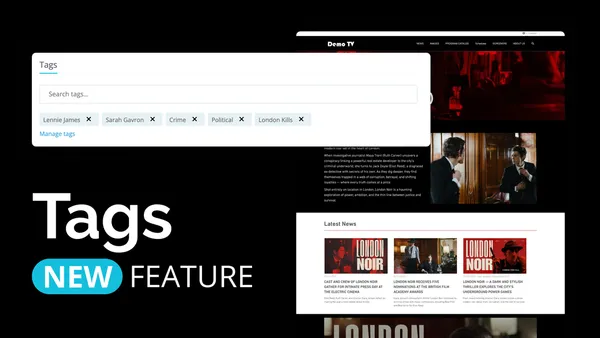
Product Update: Tags! You're it
Winter’s rolling in, but we’re keeping things warm with a batch of fresh updates, and this one, comes with a real game changer. We’re introducing Tags: a new, easier, and more powerful way to connect related content across Clipsource. With Tags, the old Presskit feature in Screening Room is replaced, making it possible to create dynamic collections that automatically update whenever new content is added.
Product Updates: October 2025
Bye Spooky season, Hi November! For this past month we have a round-up of new enhancements that make working in Clipsource smoother, faster, and a little more enjoyable. From better image control to smarter automation and improved playback, here’s what’s new across the platform: